Let your AI run your planner (Claude, ChatGPT, Le Chat…) with MCP
With MCP, Claude, ChatGPT or Le Chat can read and update your planner. What it changes day to day, what to ask for, and how to stay in control of your data.


You already ask your AI to reword an email, summarise an article or help you plan a trip. But when it comes to your own organisation, it's blind: it doesn't know your tasks, your calendar or your projects. So you copy, you paste, then you copy the result back somewhere else. After the third time, you give up.
MCP changes that. It lets your AI look things up and make changes directly in the tool where your planning lives, whenever you ask. Here's what it is, what it makes possible, and the questions to ask yourself before you connect anything.
MCP in a nutshell
MCP stands for Model Context Protocol. It's an open standard, introduced by Anthropic at the end of 2024 and since adopted by many AI apps, for connecting an application to an AI. It's often compared to a universal plug: an app that speaks it can connect to every AI that speaks it too, without custom work for each one.
In practice, the app makes tools available to the AI: "list tasks", "create a note", "tick off a routine". When you talk to your AI, it picks which tools to call to answer your request. You see those calls go by in the conversation, and many apps ask for your go-ahead before the AI acts.
What it changes day to day
Two things, mainly.
The AI stops guessing and starts reading. When you ask where to start your day, it doesn't hand you generic advice: it looks at your overdue tasks, your deadlines and your appointments, and answers based on your actual situation.
The AI stops advising and starts doing. Instead of giving you a list to copy out, it creates the tasks, files them in the right project, moves a deadline. You talk normally, it turns that into actions.
It's especially handy for anything tedious to type in by hand: turning meeting notes into tasks, breaking a project into steps, sorting a pile of loose ideas.
Concrete requests to try
A few examples, to adapt to the way you talk:
- "What's on my plate today? Help me pick the three most important tasks."
- "Here are my notes from this morning's meeting: create the tasks that come out of them in the Website project, with a realistic deadline for each."
- "I want to repaint the bedroom by the end of the month. Break that down into steps and create the project."
- "Sort my inbox: suggest what each item should become, then do it once I've approved."
- "Prepare my weekly review: what I finished, what slipped, and three priorities for Monday."
- "Add Dune to my list of films to watch."
- "Write in my journal: great day, I finally wrapped up the report."
The best requests give context (which project, which deadline, which criteria) and leave the tedious part to the AI.
A few habits to stay in control
- Ask for a proposal before big changes. "Suggest first, then wait for my OK" avoids surprises when the AI is about to create twenty tasks.
- Check what it did. An AI can misread a date or pick the wrong project. A quick look at the app after a big operation is enough.
- Be wary of deletions. A well-built integration tells the AI to get your confirmation before erasing anything, but keep the habit of checking.
- Stay the author of your choices. AI is excellent at organising, breaking down and rephrasing. Deciding what matters to you is still your job.
The question that matters: privacy
Connecting your planner to an AI means opening up part of your life to it. Before you do, four questions deserve a clear answer.
Where does my data go? What the AI reads goes through the AI app you use (Anthropic for Claude, OpenAI for ChatGPT, Mistral for Le Chat) and follows its terms. Check in its settings whether your conversations can be used to train its models, and turn that off if you prefer.
What can the AI see? A good tool lets you choose precisely: tasks yes, budget no, for example. Apply the principle of least access: only open what's useful for what you're asking.
Is there anything it will never see? Some data deserves stronger protection: a private journal, health data, your finances. Make sure they can stay closed.
Can I switch it all off? A connection should be removable at any time, in one click, without having to change your password.
A useful AI doesn't need to see everything: it needs to see what you choose to show it.
In Dandori
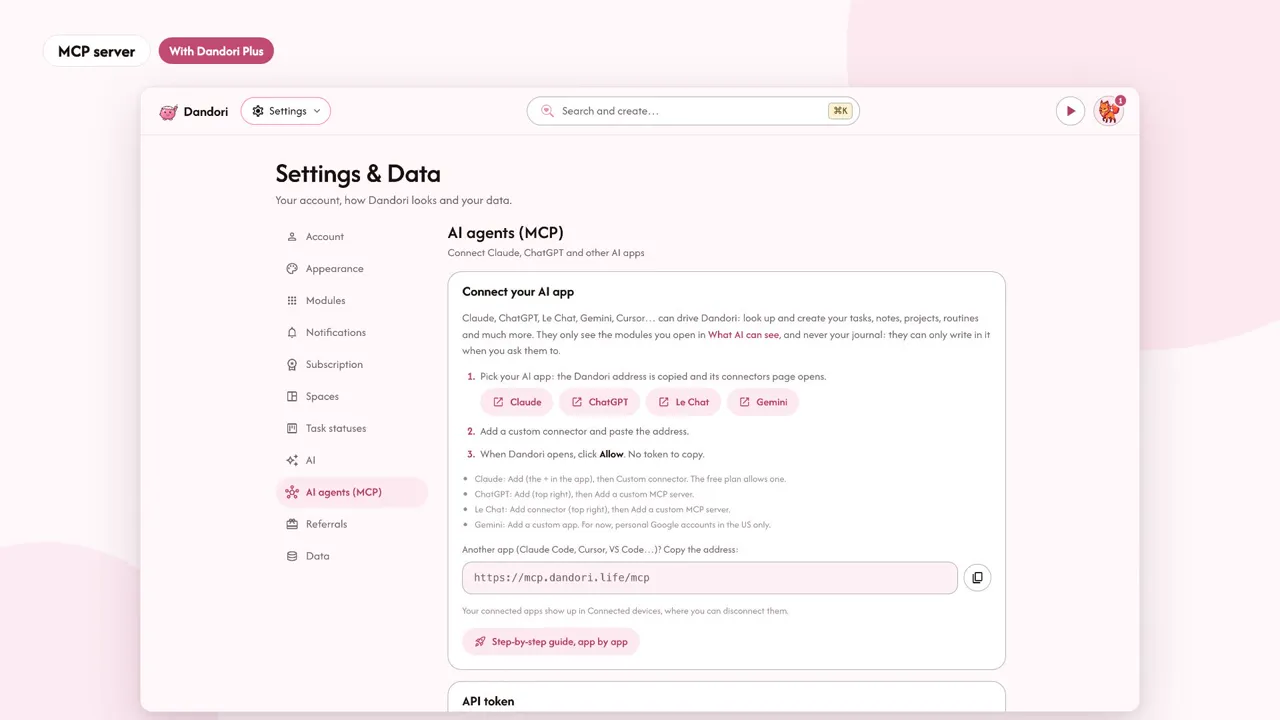
Dandori has its own MCP server. With the Plus plan, you connect it to Claude, ChatGPT, Le Chat or tools like Cursor and VS Code by giving them a single address: https://mcp.dandori.life/mcp. For Claude, Dandori's button opens the add window already filled in; elsewhere, you paste the address into a custom connector. Dandori then opens, you click "Allow", and you're done: no token to copy. The step-by-step guide, app by app, is in Settings, AI agents (MCP).
On the privacy side:
- You choose module by module what AI can see, in Settings, AI section, "What AI can see". The same rule applies to every AI, Dandori's own as well as your connected apps.
- Check-in, Health, contacts, budget and memories stay closed until you open them.
- My journal is never read: the AI can only write in it, when you ask.
- Your password, email and subscription are never accessible to a connected app.
- Your connected apps show up in Connected devices, where you can disconnect them whenever you like.
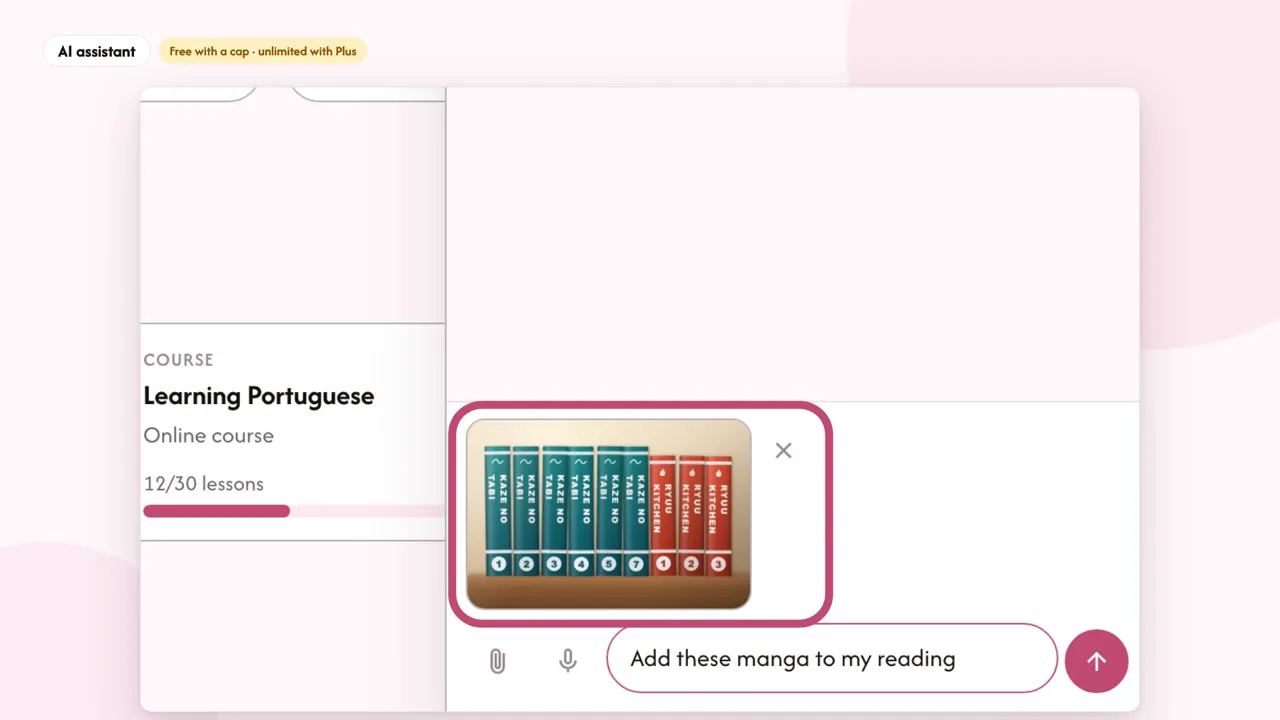
Rather stay inside Dandori? The built-in assistant creates your tasks, sums up your week and answers your questions, with your own key (Anthropic, OpenAI, Mistral or Gemini); on the free plan, it has a limited number of messages each month. Like all of Dandori's AI, it's off by default: the app works perfectly well without it.